Eclipse Plug-in for Spin
Update
April, 2014: Plug-in has been replaced by An Integrated Development Environment for the Spin Model Checker - SpinRCP
Description
The plug-in can be used to view and edit Promela model with the help of syntax highlighting, code folding, problem markers, and code assistance. With the use of the Spin and XSpin simulation and formal verification of the model can be run directly form the Eclipse. All configuration settings and verification parameters can be exported(saved) and imported. Additionally, it can integrate external tools for manipulation of the model or the results. The final goal of the project is to provide a Spin development environment with the support of the external tools and version control for the simulation and verification results.
Gallery


Installation Instructions
There are two different options for installing Eclipse plug-in. First option is by downloading jar file in to Eclipse plugins folder. The second option is with the use of Eclipse update site. Using this method, user must enter http://matrix.uni-mb.si/fileadmin/datoteke/znanost/orodja/ep4s/update-site/ in the Eclipse update manager and deselect "Group Items by Category".
After installation is finished, Eclipse platform must be restarted.
Usage
1. Spin perspective
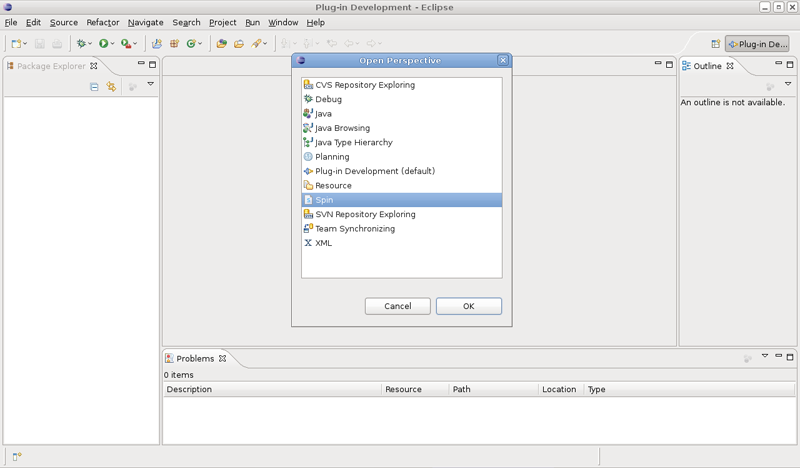
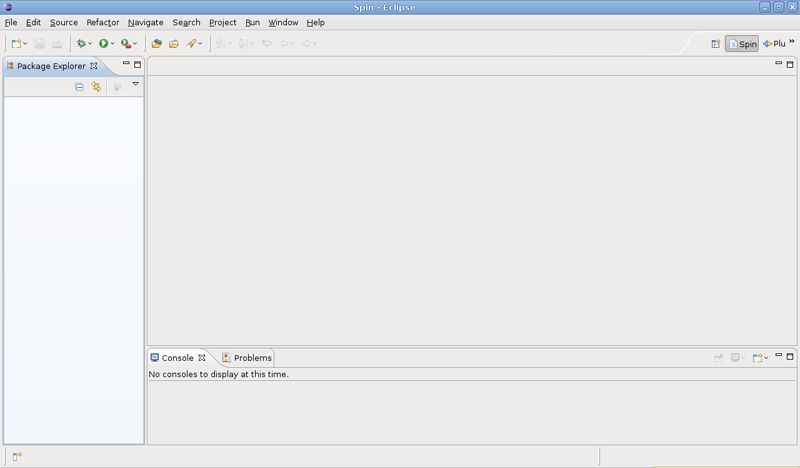
After successful installation, user is adviced to open a new Spin perspective (Window / Open Perspective / Other...) (Figure 1.), which contains several views needed during the work with the Spin plug-in (Figure 2.).


2. Creation of a new model
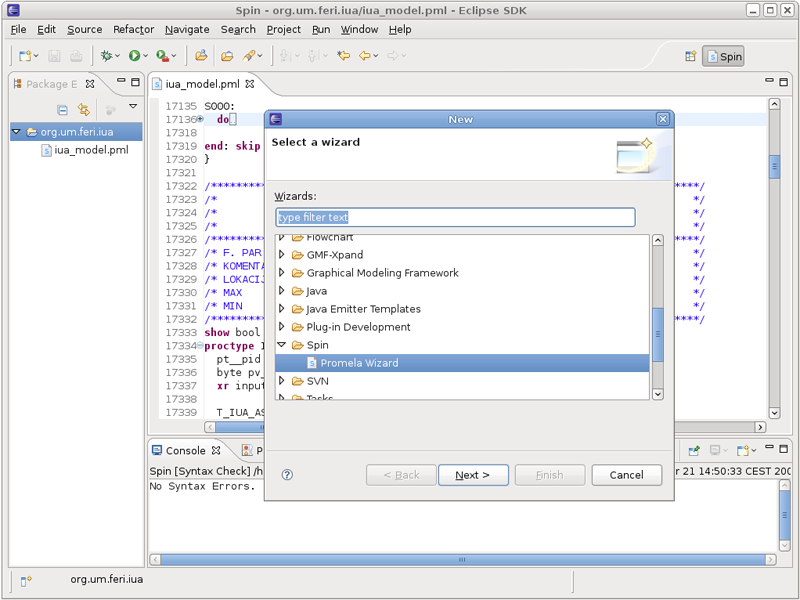
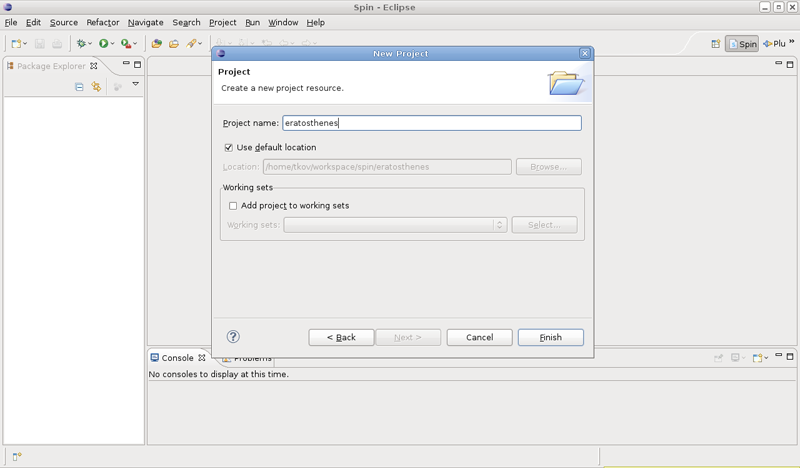
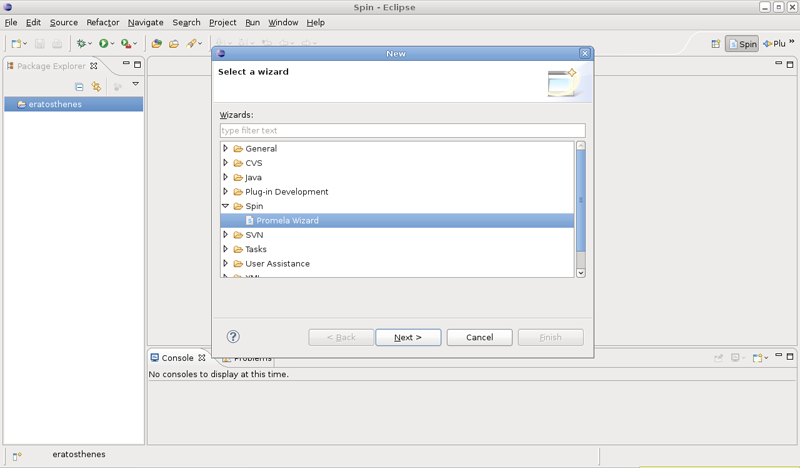
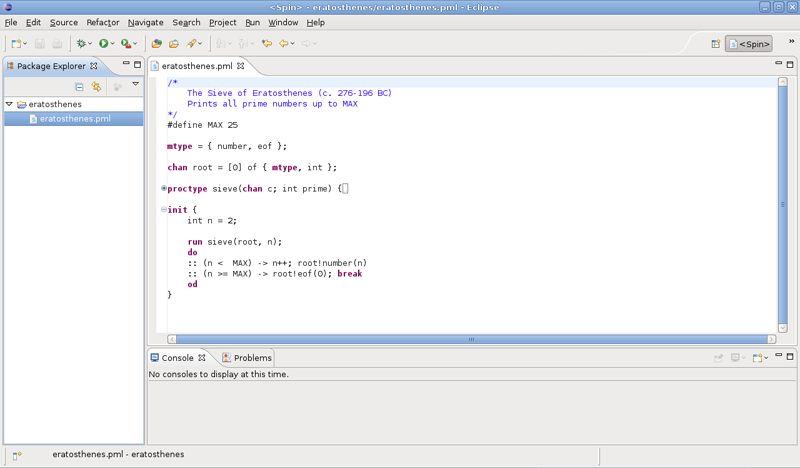
First step to create a new Promela model is to create a new general project (File / New / Project / General / Project) (Figure 3.) in which the model will be kept. Next, with the use of Promela Wizard (File / New / Other... / Spin / Promela Wizard) (Figure 4.), user creates a new Promela model with the .pml (Figure 5.) extension. Newly created model should appear in the Package Explorer. It's content should be shown in the Promela Editor. Figure 6. presents eratosthenes model opened in the Promela Editor.


3. Preference pages
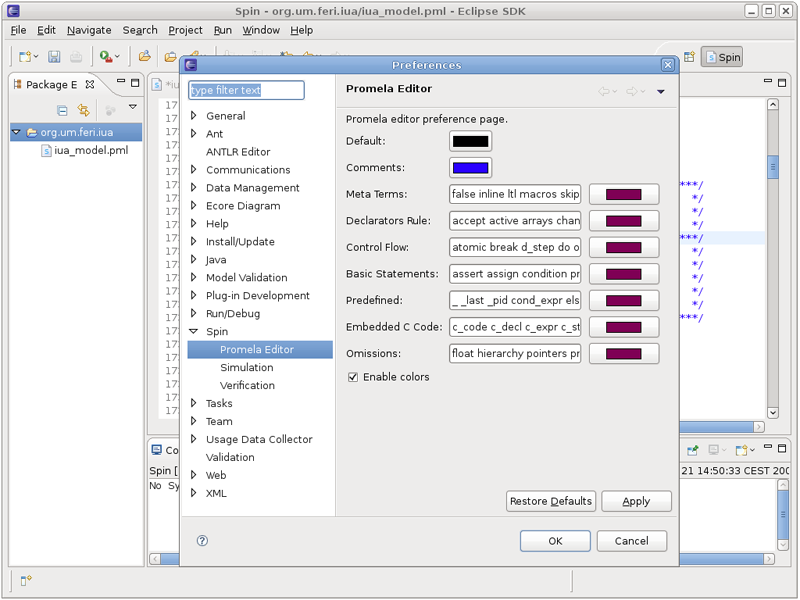
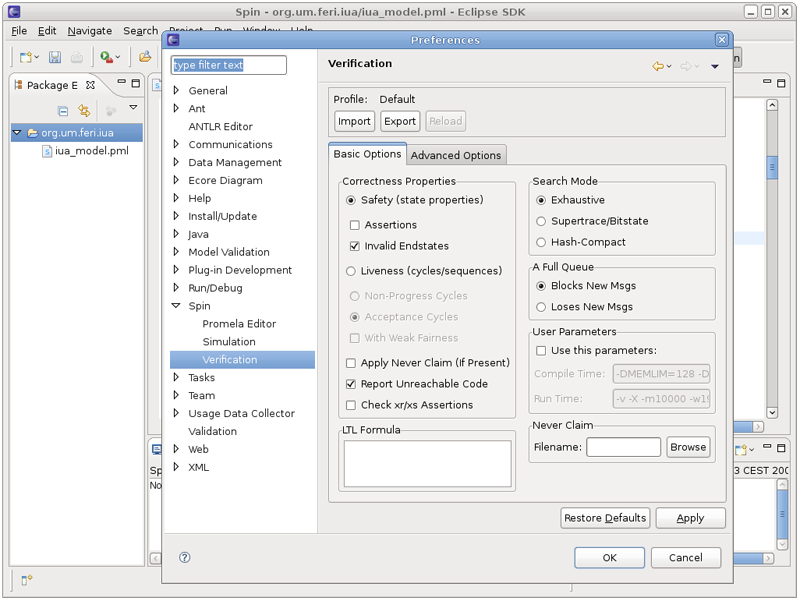
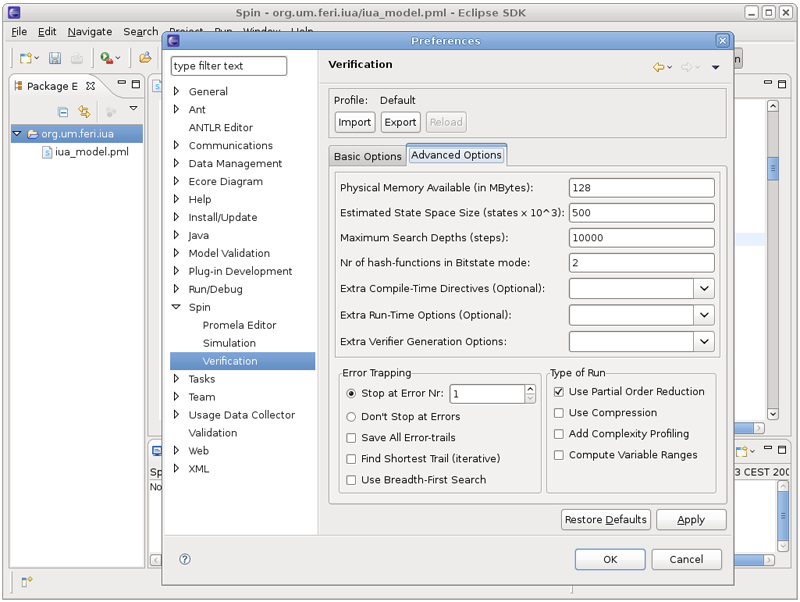
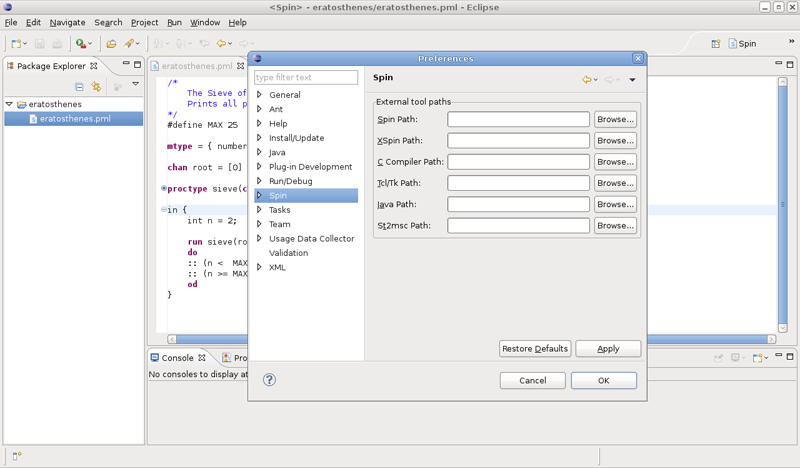
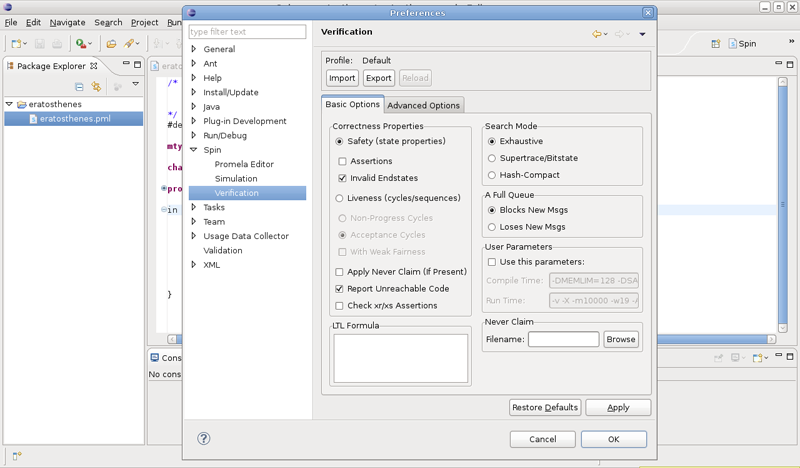
For the proper functioning of the Spin plug-in, paths to the external tools must be set. They can be set on the Spin preference page (Window / Preferences) (Figure 7.). On the Spin preference page some of the other plug-in properties can also be set. User can set Promela Editor, Spin Simulation, and Spin Verification options (Figure 8.).


4. Syntax check, verification and simulation
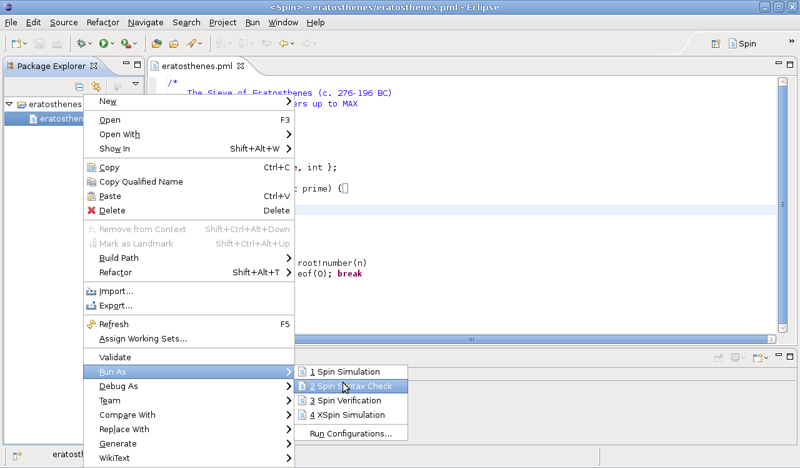
Actions over the Promela model can be performed with the right click in the Promela Editor area, or with the right click on the Promela model in the Package Explorer. After the right click, context menu should appear. In the context menu, user can select a Syntax check, Simulation, Verification, or Simulation with the XSpin tool (Figure 9.).


Acknowledgements
Raimar Bühmann, student at the Technical University of Braunschweigin, implemented following improvements to the tool:
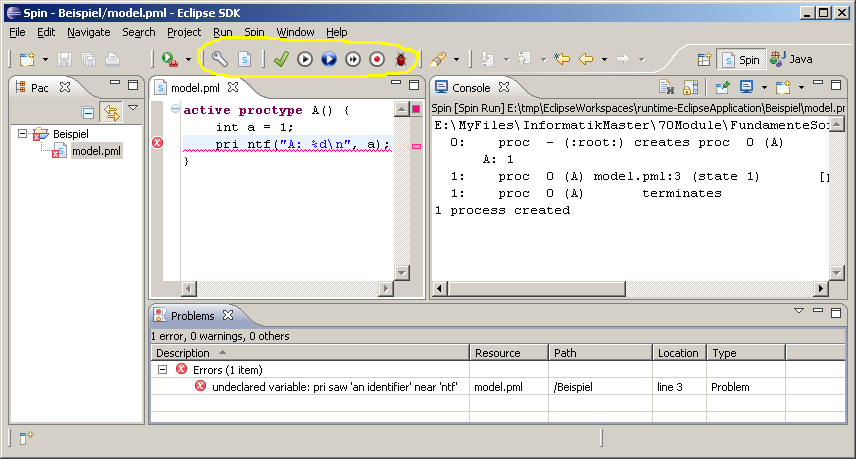
- Icons are directly accessible from the toolbar.
- Icons provided with keyboard shortcuts (F7, F8, F9).
- New icons:
- Spin Run, just to see printf's,
- Spin Run (verbose) to get additional information,
- Spin Preferences to access the settings,
- Spin New File (also visible, if there is no pml file opened).
- Syntax errors in source code are now underlined.
- Tooltip appears when the mouse stops over a syntax error.
- Command-line calls are now displayed in the console window completely.
- Predefined paths to spin and gcc.
- Notifying the user of wrong paths for spin or gcc.
- A line with leading "/ / " appears just like any other comment lines colored.
Recent Publications
- T. Kovše - Integration of Spin tool into Development Environment Eclipse (in Slovene), 2008. [COBISS.SI-ID 12626710, pdf]
- T. Kovše, B. Vlaovič, A. Vreže, and Z. Brezočnik - Spin Trail to a Message Sequence Chart Conversion Tool, ConTEL 2009. [COBISS.SI-ID 11273750, bibtex,pdf]
- T. Kovše, B. Vlaovič, A. Vreže, and Z. Brezočnik - Eclipse Plug-in for Spin and st2msc Tool, SPIN 2009. [COBISS.SI-ID 13289750, bibtex, pdf]
Comments